
How To Disable The Floating Thumbnail Preview For Screenshots
For a while now, one of the features when taking a screenshot in macOS is to see a floating thumbnail preview of the screenshot before it actually saves to the location you’ve specified. This is enabled by default. And it looks something like this before the file actually appears -
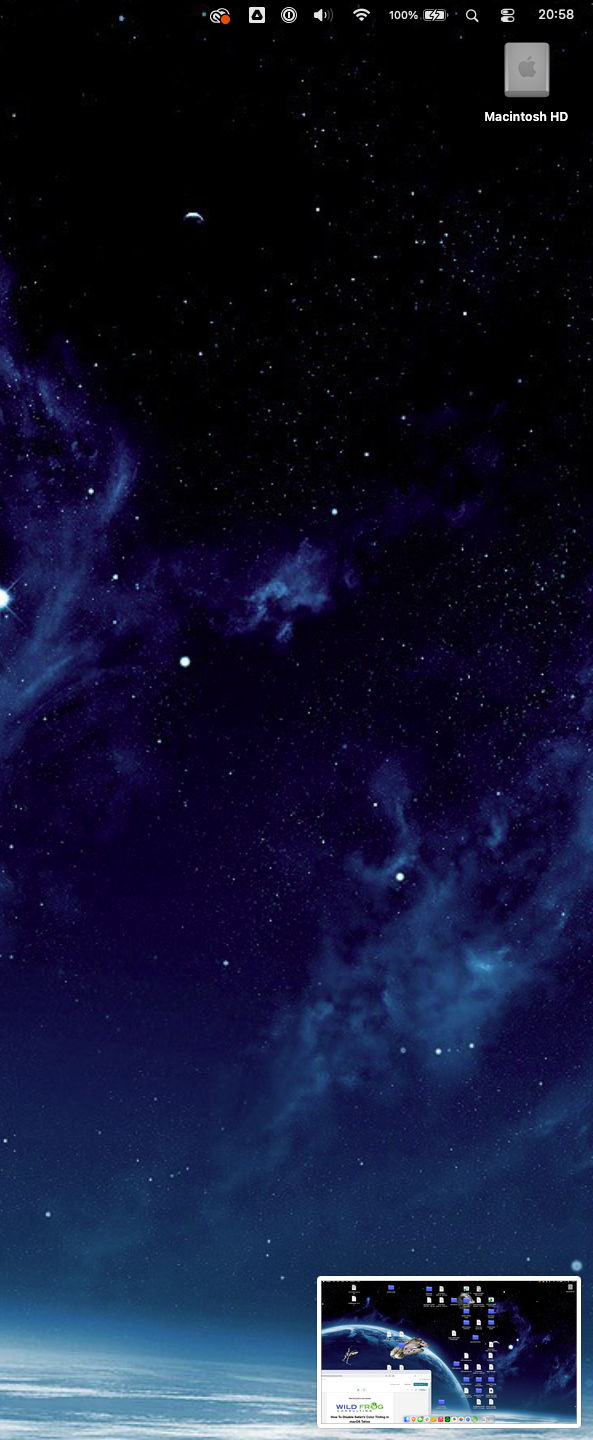
Screenshot is taken.
Floating thumbnail preview appears and slides off-screen.
Screenshot file icon appears on the desktop
I tend to be impatient and don’t like waiting for the thumbnail to sort itself out before I can deal with the file. Fortunately there’s a way to turn off the preview using the Screenshot app - located in Applications->Utilities
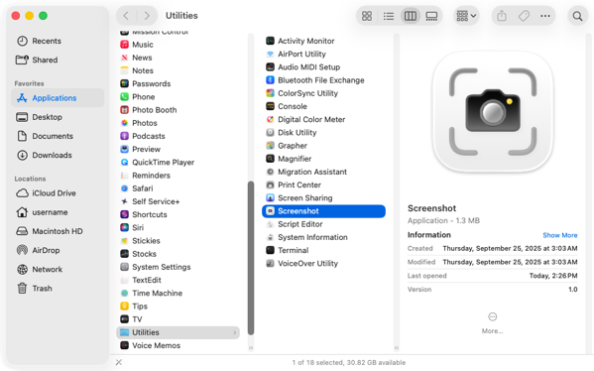
When you use Screenshot.app, it will provide a toolbar for selecting screenshot image or screen capture movie options. As part of that toolbar, there is an Options button.

When you click the Options button, you get a menu where one of the selections is Show Floating Thumbnail. If you unselect that, the floating thumbnail preview no longer appears when taking screenshots or making screen capture movies.
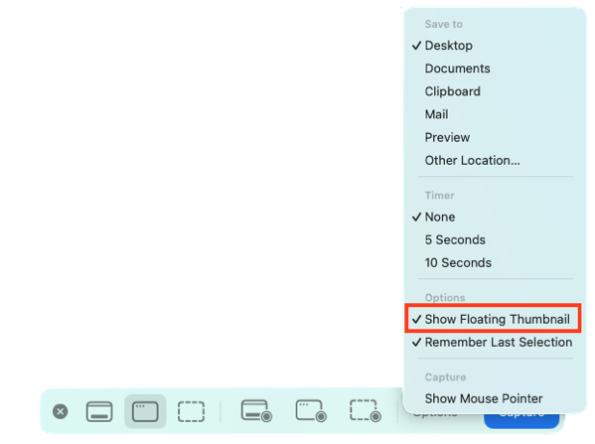
From there just close out of Screenshot.app. After that, when you take a screenshot the fill will just appear straightaway.
Have questions about cybersecurity or some other Mac-related issue?
Click here to book a quick, 10-minute call.