
How to Move Offices Without Disrupting Your IT

An office move already comes with a long list of things to organize. You have lease dates, furniture, movers, access cards, insurance, and staff schedules to think about.
Somewhere on that list, “move the IT” may appear as a single task.
It sounds simple enough. Pack the computers, take them to the new office, connect everything, and carry on working.
But those computers depend on internet service, network equipment, cabling, Wi-Fi, phones, printers, cloud applications, and several other systems that may not be ready at the new address. If any one of them is missed, employees can arrive on the first morning and find that they can’t sign in, make calls, print documents, process payments, or access the files they need.
Most of these problems can be avoided when the IT work starts early enough.
Involve your IT provider before the move date is set
Tell your IT provider about the move as soon as the new location becomes a serious option.
If possible, ask them to inspect the premises before you sign the lease or confirm renovation plans. They can check whether the building has suitable internet services, enough network cabling, space for equipment, and the power needed for your setup.
A modern-looking office doesn’t guarantee that the cabling is usable. The previous tenant may have removed equipment, left cables without labels, or installed network points that don’t reach the places where your staff will work.
Building management may also control when providers can enter the site, where equipment can be installed, and which contractors are allowed to work in shared areas. Finding that out early gives you time to arrange access rather than discovering the restriction when an engineer arrives.
Give one person responsibility for the IT move
Office moves involve property managers, internet providers, electricians, cabling contractors, movers, software vendors, and your own employees.
Choose one person inside the business who can coordinate decisions and keep track of dates. That person doesn’t need to understand every technical detail, but they should know who is responsible for each part of the move and who can approve changes.
Your IT provider should prepare a timeline covering the work that must happen before, during, and after the move. It should include internet installation, cabling, equipment setup, testing, staff communication, and the date when services at the old office can be cancelled.
Leave time between installing the new systems and moving your employees. If the new office is only ready on the morning everyone arrives, a delayed internet connection or damaged cable immediately becomes a business-wide problem.
List what your business needs in order to operate
Before deciding how to move the technology, write down what the business needs to do each day.
That may include answering calls, taking card payments, accessing customer records, joining video meetings, sending invoices, printing labels, receiving online orders, or connecting to a specialist industry system.
Then identify the technology behind each activity.
For example, a cloud accounting system needs working internet, user accounts, MFA, and access to any connected scanners or printers. A reception phone may depend on the internet and a correctly configured handset. A payment terminal could use Wi-Fi, a mobile connection, or an older phone line.
This exercise often finds equipment that nobody thought of as IT. Door access systems, security cameras, intercoms, alarms, meeting-room screens, postage machines, and building controls may all depend on the network or a communications service.
NIST’s Cybersecurity Framework 2.0 Small Business Quick-Start Guide recommends maintaining an inventory of the hardware, software, systems, and services a business relies on. That inventory is just as useful during an office move because it reduces the chance of an important system being left behind.
Check the new office properly
Your IT provider should inspect the new location and compare it with how your team will use the space.
They need to know where employees will sit, which rooms will host video calls, where printers and phones will go, and whether any equipment needs a wired connection. A floor plan helps, but an on-site visit can reveal issues that don’t appear on the drawing.
The inspection should cover network outlets, cable routes, Wi-Fi coverage, power sockets, and the room or cabinet that will hold the main network equipment.
That equipment needs a secure location with suitable power and ventilation. It shouldn’t be left under a desk, in an unlocked public area, or inside a cupboard that overheats when the door is closed.
If the office requires new cabling, complete and test it before furniture blocks access to walls, ceilings, or floors.
Arrange the internet connection early
Internet installation can involve surveys, building approval, cabling work, equipment delivery, and an engineer visit. The time required depends on the provider, location, service type, and work already completed in the building.
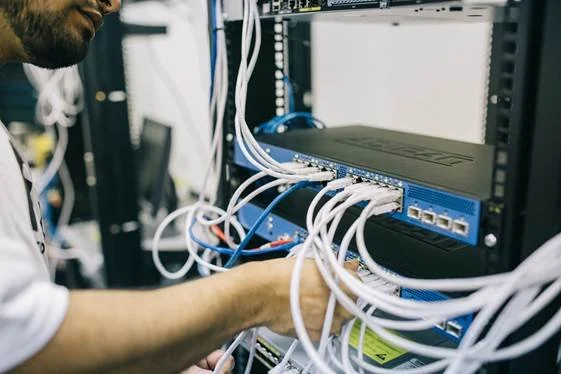
Order the new connection as soon as you know what the office needs. Ask the provider to confirm the installation date, expected activation date, and any work that must be completed by the landlord or your contractors.
Choose the service based on how your business works. A company that depends on cloud applications, video meetings, internet phones, and large file transfers may need more capacity than a team that mainly uses email and web applications.
Microsoft advises businesses using Microsoft 365 to assess internet capacity and network performance at each office location, particularly when services such as Teams calls and Zoom meetings depend on that connection.
If losing internet access would stop the business from operating, discuss a backup connection with your IT provider. That might use another fixed connection or a mobile network, depending on what is available at the location.
The backup should be tested. Having a second service on paper doesn’t help if the firewall isn’t configured to use it or the signal is too weak inside the building.
Keep the old office connection active until the new one has been installed, tested, and used successfully. Cancelling it too early removes one of your fallback options if the move date changes.
Check phones, alarms, and other communication lines
Many business phone systems now use the internet, which means their reliability depends on the local network, internet connection, and power.
Ask your phone provider what needs to change at the new address. Confirm whether existing numbers can be moved, whether handsets need to be reconfigured, and whether the address associated with emergency calling needs to be updated.
Check other equipment that may rely on a phone or communication line. That could include alarms, intercoms, entry systems, payment terminals, elevator phones, fax machines, or monitoring equipment.
Don’t assume a device will work because there is a phone socket on the wall. Older telephone networks are being replaced with digital services in many countries, and equipment designed for an analogue line may need an adapter, replacement, or its own mobile connection.
For example, current UK government guidance advises businesses to check whether alarms, payment terminals, lifts, intercoms, and other devices rely on older telephone networks. The dates and services vary by country, so ask each equipment supplier what the device needs at your new location.
Plan the network for the new space
Moving the old router and switches to the new office without reviewing the setup can bring old problems with you.
Your IT provider should confirm whether the existing firewall, switches, and wireless access points are suitable for the new location. A larger office may need more wireless access points, while an office with thicker walls or several floors may need a different layout.
Wi-Fi should be tested from the places where people will use it, including meeting rooms and reception areas. Signal strength beside the network cabinet tells you very little about how a video call will perform at the far end of the office.
Business and guest access should remain separated. Printers, cameras, building systems, and other connected devices may also need their own network controls, depending on the setup.
If your systems restrict access by public IP address, tell the relevant software vendors about the move. The new internet service may use a different public IP address, which could stop access to cloud systems, supplier portals, remote connections, or site-to-site VPNs until the approved settings are updated.
Back up important systems before equipment is moved
Moving equipment creates more opportunities for something to be damaged, misplaced, or disconnected incorrectly.
Confirm that important business data is backed up before the move begins. Then check that the most recent backups completed successfully and that the required information can be restored.
A completed backup job isn’t enough on its own. You need confidence that the data is present and usable.
The NIST Cybersecurity Framework 2.0 recommends creating, protecting, maintaining, and testing backups. Its recovery guidance also calls for checking the integrity of backups and restored systems.
Cloud software may protect some information, but it doesn’t automatically cover every device, application, file location, or configuration in your business. Ask your IT provider to confirm what is backed up and what would need to be rebuilt if a device were damaged during the move.
Decide what should move and what should be replaced
Moving an old switch, failing printer, or unsupported computer can save money in the short term, but it may also bring an existing problem into the new office. Ask your IT provider which equipment should move, which items should be replaced, and what can be retired.
Do this review early. Replacement equipment may need to be ordered, configured, and tested before the move.
Keep a record of every device being transported, including its serial number, current location, and intended location in the new office. Label cables, power supplies, monitors, phones, and any specialist adapters so the right parts arrive together.
Photographs of the existing setup can help with equipment that has several connections, though passwords and other sensitive information shouldn’t appear in the images.
Protect equipment and data during transport
Computers and network equipment should be packed and transported by people who know how to handle them.
Small items such as backup drives, security keys, and network devices are easy to lose among general office boxes. Keep them in labeled, tracked containers and make sure someone is responsible for handing them over at the new location.
Avoid leaving equipment unattended in hallways, shared loading areas, or unlocked rooms. A device doesn’t need to be working for the information stored on it to be valuable.
If a mover or outside contractor will handle business equipment, agree on who will pack it, who will receive it, and how missing or damaged items will be reported.
Choose a clear cutover period
Decide when staff will stop working at the old office and when systems will become available at the new one.
During the cutover, avoid making software, network, or account changes that aren’t required for the move. Keeping unrelated changes out of the same period makes any problem easier to identify.
Tell employees when systems may be unavailable and what they should do if they need to work during that time. Some staff may be able to work from home, but confirm that they have suitable devices, secure remote access, and the files they need before the office systems are disconnected.
Choose which systems must come back first. Internet access, firewall services, identity systems, and phones may be more urgent than meeting-room screens or secondary printers.
That order should be agreed in advance, so the technical team isn’t making business-priority decisions while equipment is being unpacked.
Test the new office before employees arrive
Once the new network is running, test it from the same places and devices your staff will use.
Sign in to business applications, make internal and external calls, join a video meeting, send a test print job, scan a document, and confirm that payment or booking systems can connect.
Test remote access and site-to-site connections as well. Check security cameras, door access, alarms, meeting-room equipment, and any device that sends alerts over the network.
If your business uses Microsoft 365, Microsoft provides a network connectivity test that can assess the connection from the new location. Your IT provider may use other tests for internet speed, delay, packet loss, Wi-Fi coverage, and backup failover.
Testing from one laptop next to the router isn’t enough. Problems often appear only when you use a particular room, printer, phone, or application.
Leave enough time to fix those problems before the office opens.
Update records and monitoring
The move changes more than the physical location of your equipment.
Update network diagrams, asset records, support documents, and monitoring tools with the new address and setup. Make sure alerts still reach the right people and that your IT provider can remotely manage the equipment.
Tell relevant suppliers and service providers about the change. This may include software companies, phone providers, alarm companies, payment processors, insurers, and any vendor that restricts access based on your location or internet address.
Check your public website, email signatures, customer documents, and online business listings as part of the wider office move. Those aren’t all IT tasks, but they’re often easier to update when one person is coordinating the address change.
Don’t forget the old office
After the move, inspect the old premises before returning the keys.
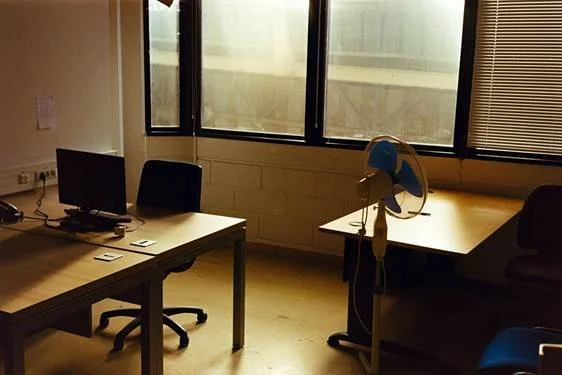
Check cupboards, server rooms, ceiling spaces, storage areas, and desks for network equipment, backup drives, phones, printers, and computers. Remove any labels or paperwork that contain passwords, network details, or other sensitive information.
Equipment that won’t be reused should be wiped or destroyed using a method appropriate for the data it contains. Deleting files or performing a basic reset may not be enough for every device.
The UK National Cyber Security Centre provides guidance on securely sanitizing storage media before equipment is reused, sold, returned, or discarded.
Once the new office is working and you’re certain the old services are no longer needed, cancel the old internet, phone, and monitoring contracts. Keep written confirmation so the business isn’t charged for services left running after the lease ends.
Plan support for the first working day
Even after testing, some employees will need help connecting to Wi-Fi, finding printers, signing into phones, or using meeting-room equipment.
Arrange for your IT provider or internal support person to be available when staff first arrive. Fixing a small issue for one employee is much easier before ten other people report the same problem.
Give staff simple instructions before the move. Tell them what equipment they’re responsible for packing, what they should leave for the technical team, when systems will be unavailable, and how to report a problem at the new office.
After the first few days, ask department managers whether anything is slower, unreliable, or missing. Some problems only appear when the office is busy and several people are using the network at once.
Frequently Asked Questions
How early should we involve our IT provider?
Involve them as soon as the new office becomes a serious option. Internet availability, building access, cabling, and equipment requirements can affect the move schedule and budget.
Should we cancel the old internet before moving?
Keep it active until the new connection has been installed and tested. If the move is delayed or the new service has a fault, the old office may still provide a temporary place to work.
Can staff work from mobile hotspots during the move?
Hotspots may help a small number of employees with basic tasks, but coverage, speed, data limits, and security vary. Test the option in advance and don’t rely on it for the entire office without checking whether it can support your business systems.
Do cloud-based businesses still need an IT move plan?
Yes. Cloud software still depends on internet access, Wi-Fi, user accounts, phones, printers, security systems, and correctly configured devices at the new office.
Who should move our computers and network equipment?
Your IT provider should disconnect and reconnect equipment that requires technical knowledge. If a moving company transports it, agree on packing, labeling, handling, and handover responsibilities before moving day.
If your business is planning an office move, involve your IT provider before dates and contractors are finalized. If you don’t have an IT provider, you can always reach out to us and we’ll help you plan the move.
This Article has been Republished with Permission from The Technology Press.