
Mac Tip: Edit PDFs With The Mac’s Built-In Preview App

PDFs are a universally accepted document format because it preserves layout and content across different devices and platforms. However, PDFs can be difficult to modify without the right tools. Fortunately, Apple equips every new Mac with a surprisingly powerful tool to edit PDFs - Preview.
Preview is macOS's default PDF viewer, and it can do more than just view documents. It's packed with editing tools for managing PDFs, from making quick annotations to organizing pages.
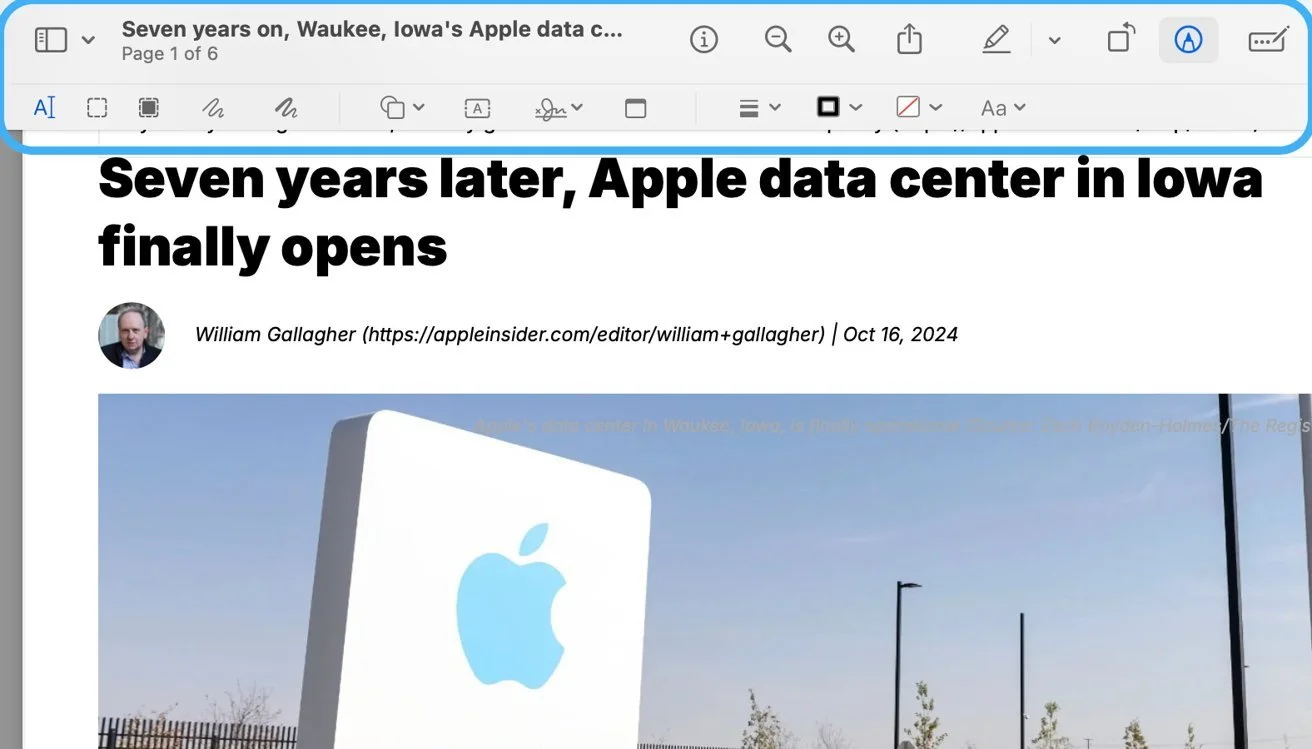
Annotations & Markups
Highlight, underline, or strikethrough text in Preview by clicking the toolbar's Highlight button (pen icon).
Add shapes or notes by selecting Tools, Annotate, Shapes from the top menu. Click and drag these shapes anywhere in the document.
To add comments, use the Note tool from the same menu.
Adding Text
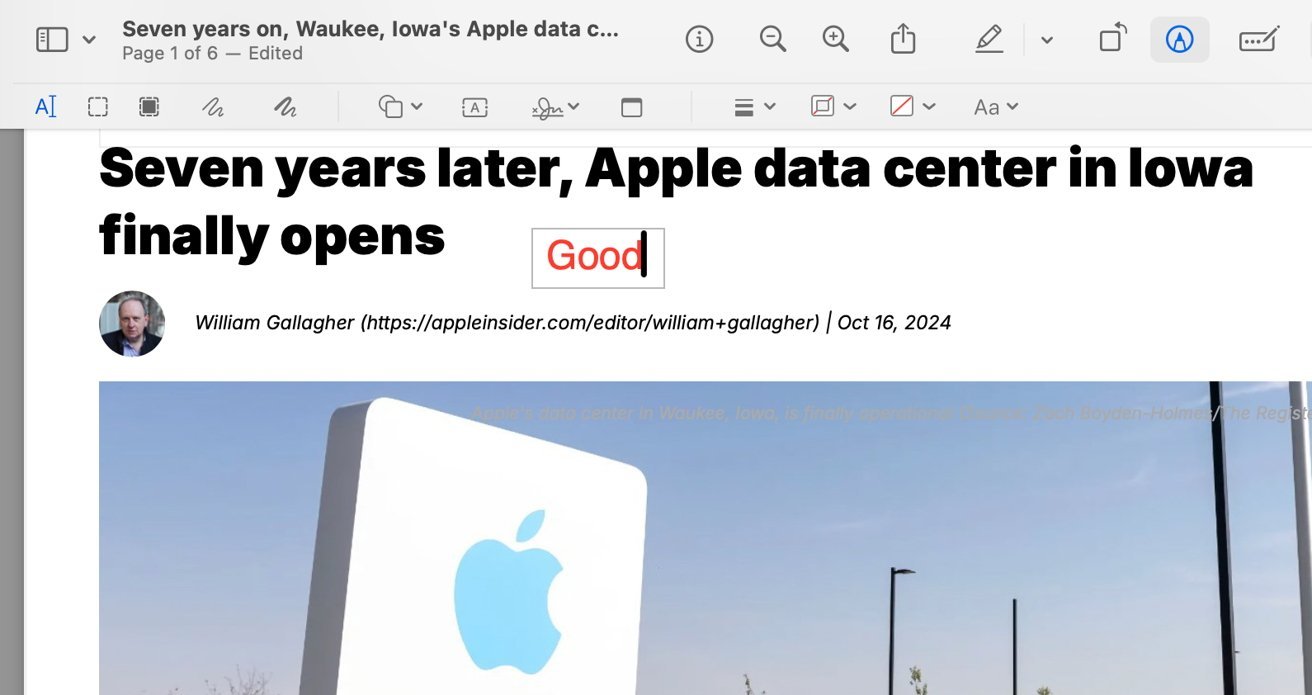
While you can't edit the existing text in a PDF using Preview, you can add new text.
Open your PDF in Preview, click the Markup Toolbar button.
Then, click the Text tool. A text box will appear, which you can move and resize.
Type the content you want to add, and you can further customize the text.
Signing PDFs
Open the PDF in Preview.
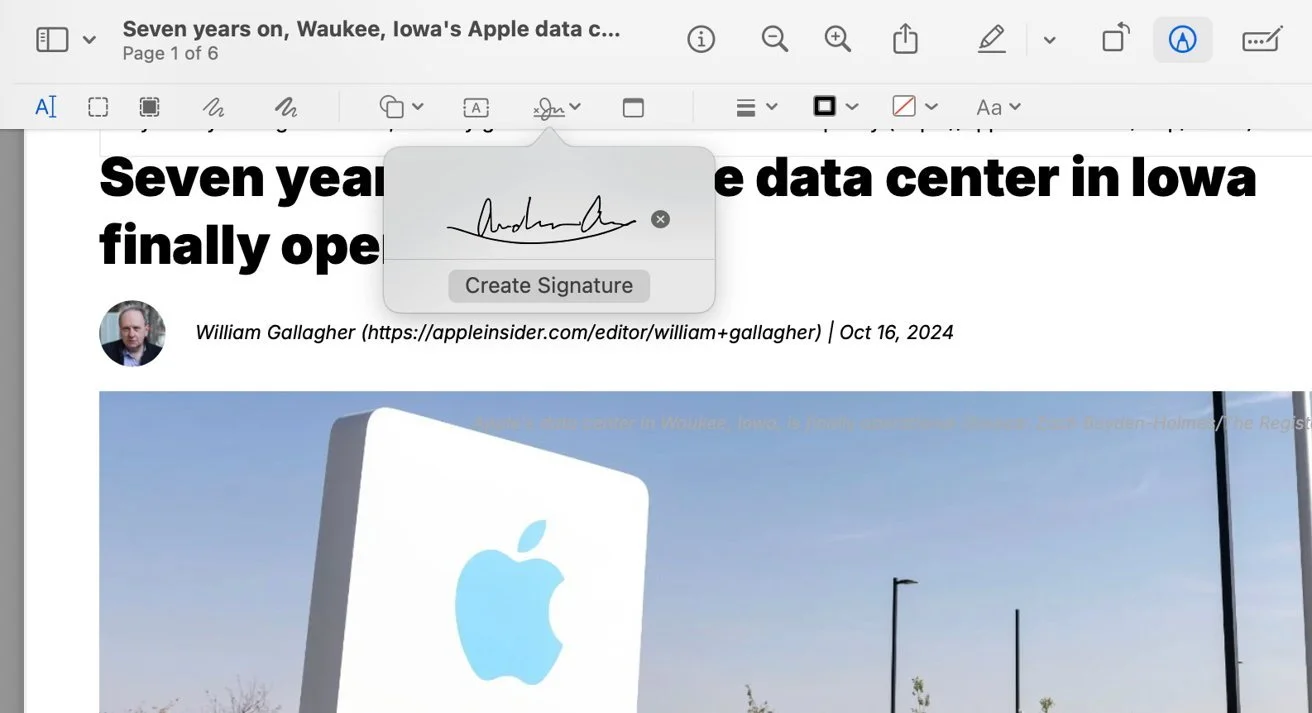
Click the Markup Toolbar button, and then click the Sign icon.
You can create a signature using your Mac's trackpad or a photo of your signature.
Once saved, click it to add it to the document, then drag and resize it as needed.
Acrobat Pro is definitely more powerful for editing PDFs, but if your editing needs are basic Preview just might be the ticket.