
Mac Tip: How To Connect Zoom To Your Google Calendar & Create Zoom Meeting Invites
By connecting Zoom to your Google Workspace calendar, you can add Zoom meeting details directly to your meeting invite. No more copy-and-pasting the meeting info. Setting this up is really easy, so let's dig in. . .
First, log into your Google Workspace account.
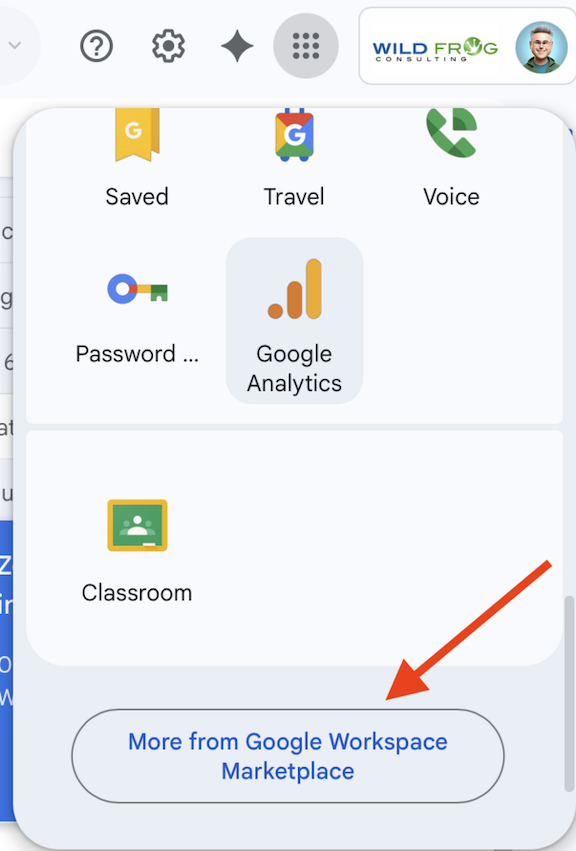
In the grid of apps, scroll to the bottom and click "More from Google Workspace Marketplace"
In the new window that pops up, go to the top and search for Zoom. Click on Zoom for Google Workspace.
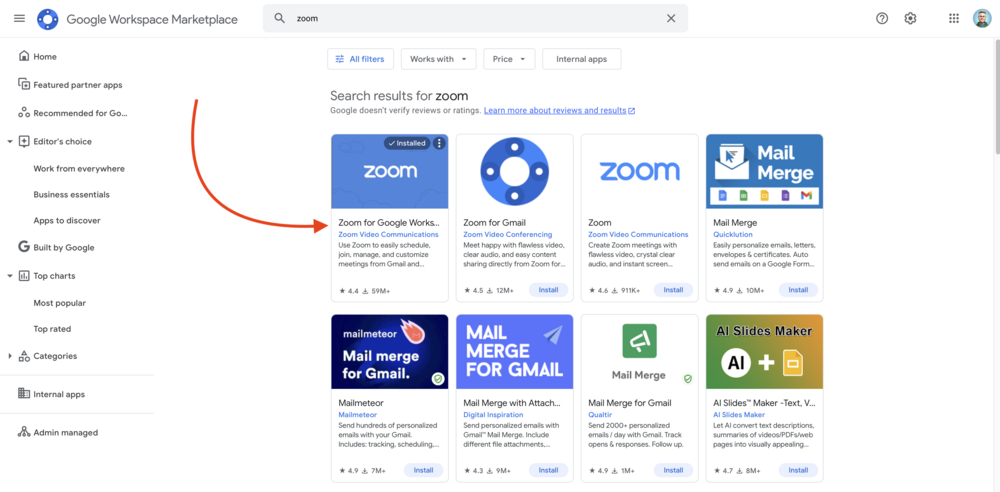
Follow the prompts to install to your Google Workspace account. You'll then need to approve/accept the terms of service.
To Schedule A Zoom Meeting From Google Calendar
In Google Calendar, click to create your meeting as normal.
Look next to "Add Google Meet video conferencing". You should now see an arrow. If you don't, exit your calendar and reload it.
Click the arrow and you should see an option for "Add Ons - Zoom Meeting". Click that.
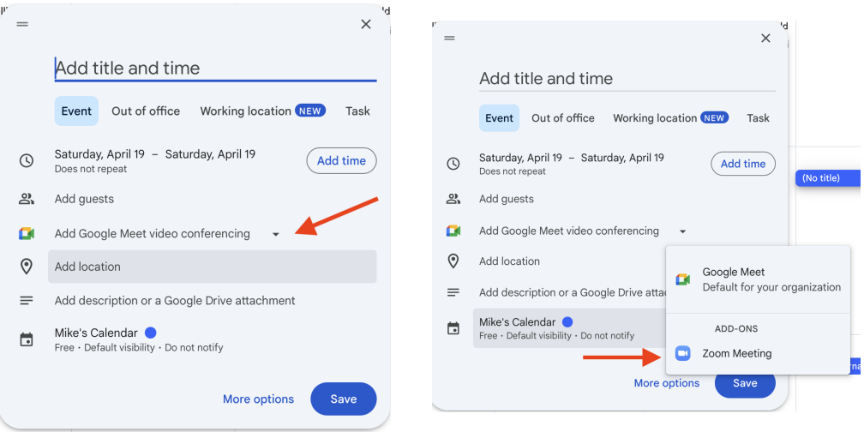
The first time you do this, you will be prompted to log into your Zoom account and give Zoom permission to add things to your calendar. After that, it will think for a moment displaying "Adding conferencing details" and then it will drop the Zoom meeting information into your invite.
From there, finish adding the details to your invite and send it off.
If you want to see more details of the invite, you can always click "More options" (next to the Save button) and it will expand your invite to the full browser window and show you all the details.
Happy Zooming!