
Mac Tip: How To Set Up 2-Step Verification For Google Workspace using Google Authenticator
When your Google Workspace account is set up, you'll be asked to enable Multifactor Authentication (MFA). At first, you'll see a window like this when you log in.
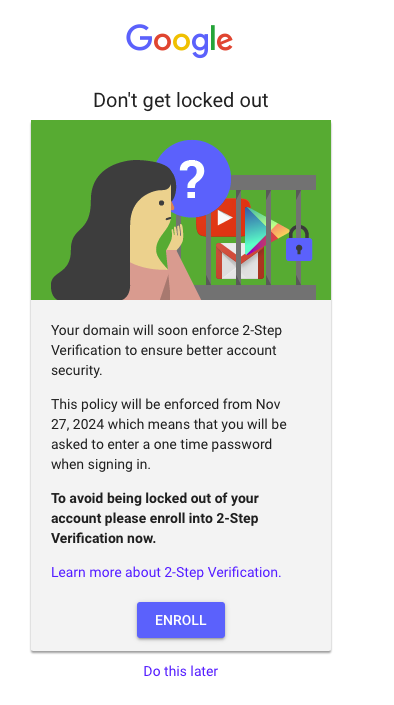
This lets you know that you can log in with just a username/password for now. But after the date shown, you'll need to set up MFA on your Google account if you haven't already. We're going to walk you through it. The first step is to download the Google Authenticator app on your iPhone or Android. As of August 2025, the icon looks like this -
Once you have Google Authenticator on your phone, let's click the blue Enroll button as shown above.
Or, if you've accessed your account using a backup code, go to the apps grid in the top right and select Account. Then click on the Security section in the sidebar. In the section titled "How you sign in to Google", click 2-Step Verification.
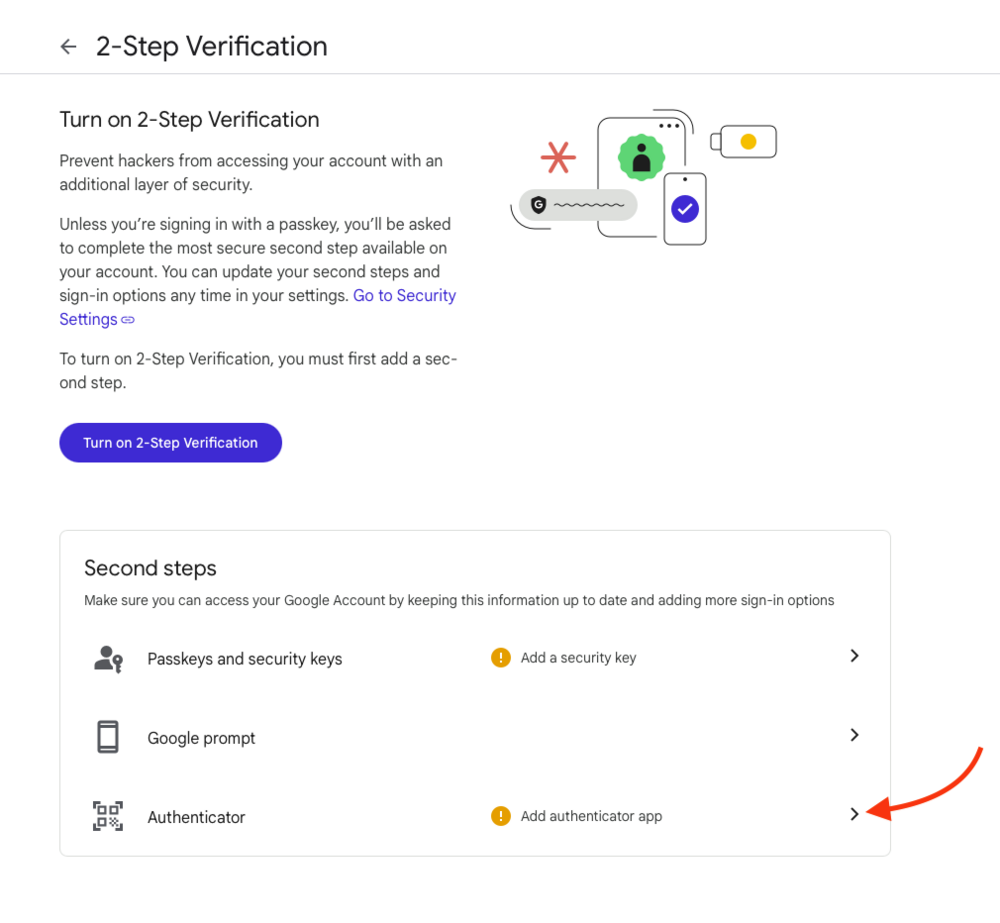
When you do, a new screen will appear asking you to choose a second authentication step. We're going to choose "Add Authenticator App".
The next window will tell you to prepare your Google Authenticator app.
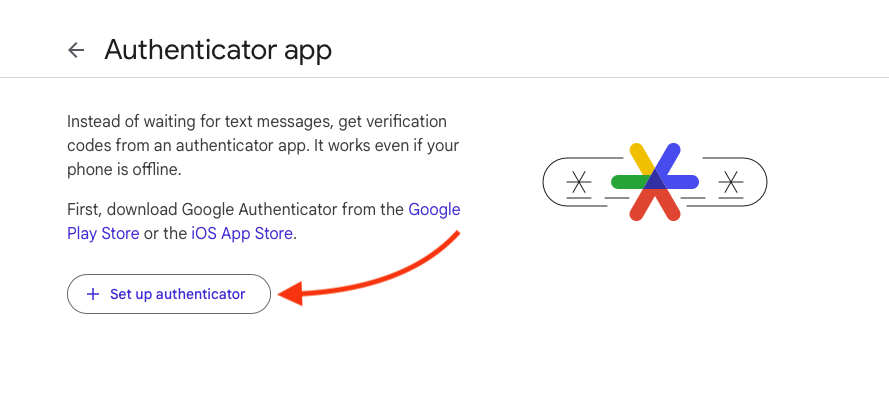
Click "Set up authenticator". When you do, a QR code will appear.
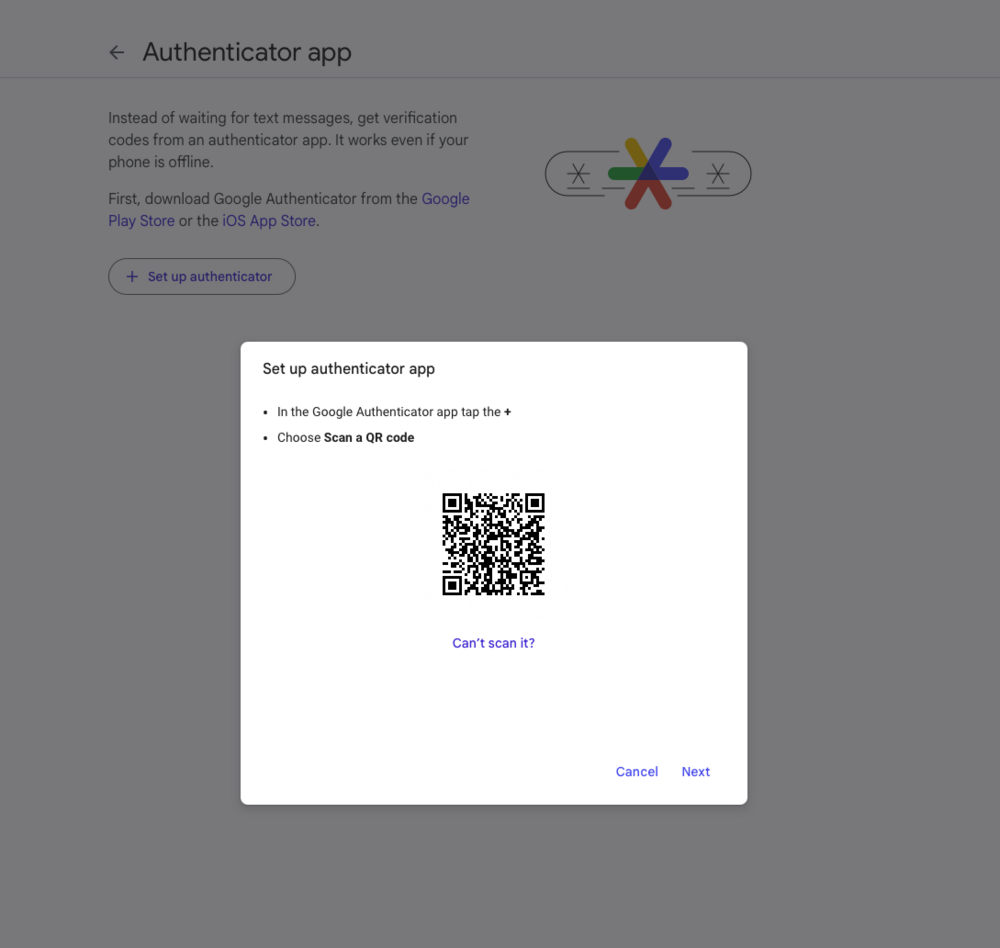
Now we need to go back to Google Authenticator on your phone. Tap the + shown by the blue arrow. Then tap "Scan a QR code" shown by the red arrow.
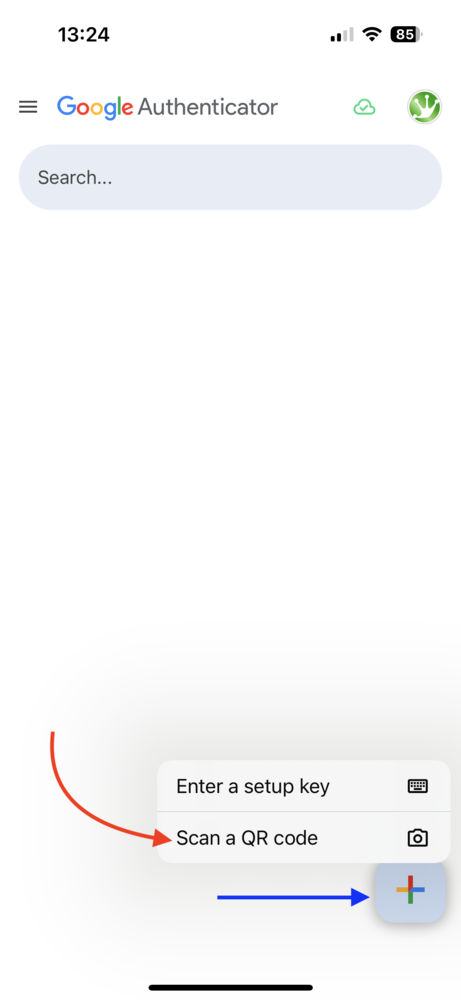
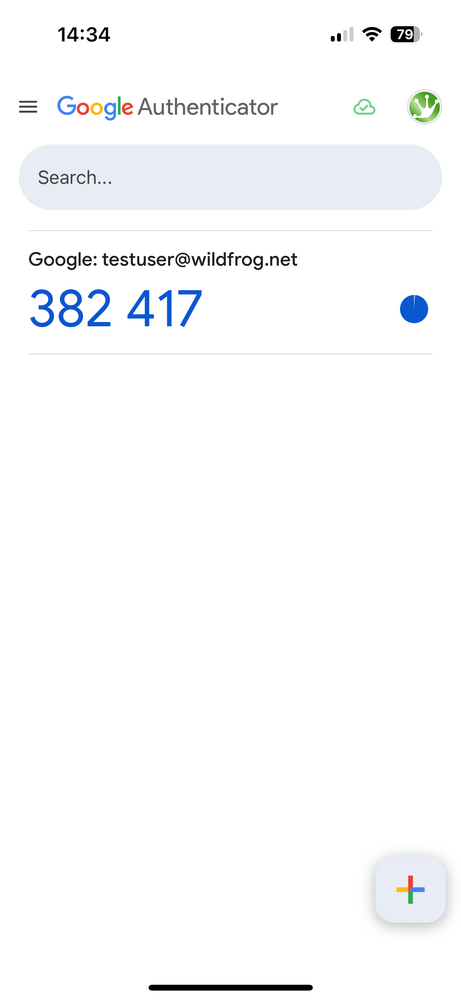
When you tap "Scan a QR code" it may ask you for permission to use the camera. Allow that. Then use Google Authenticator to scan the QR code on your computer screen. It will happen quickly. When it's successful, you'll see an entry in Google Authenticator for your Google account with a 6-digit code that rotates every 30 seconds. It should look something like this.
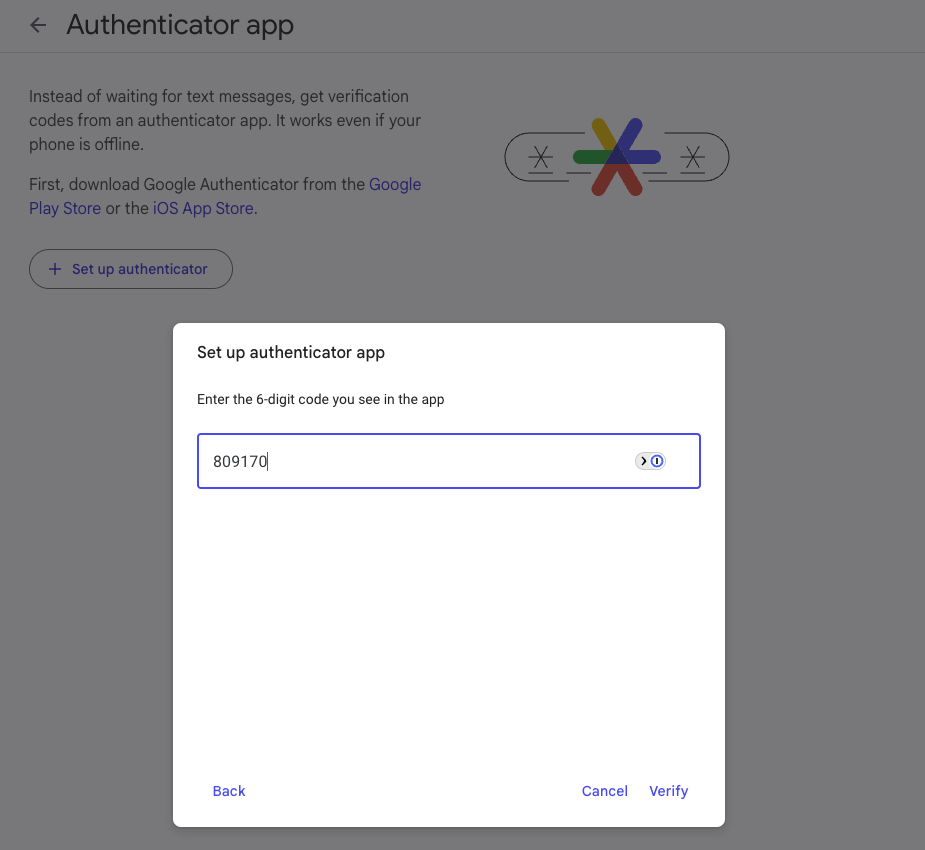
Now click Next button on the computer screen with the QR code. On the next window, you'll be prompted to enter the 6-digit code that appears in your Google Authenticator app. Enter the code from the app and click Verify.
When you click Verify, you'll see a window indicating that you've added an Authenticator app as your second step. Now click the blue "Turn on" button. This will add your second step to your login.
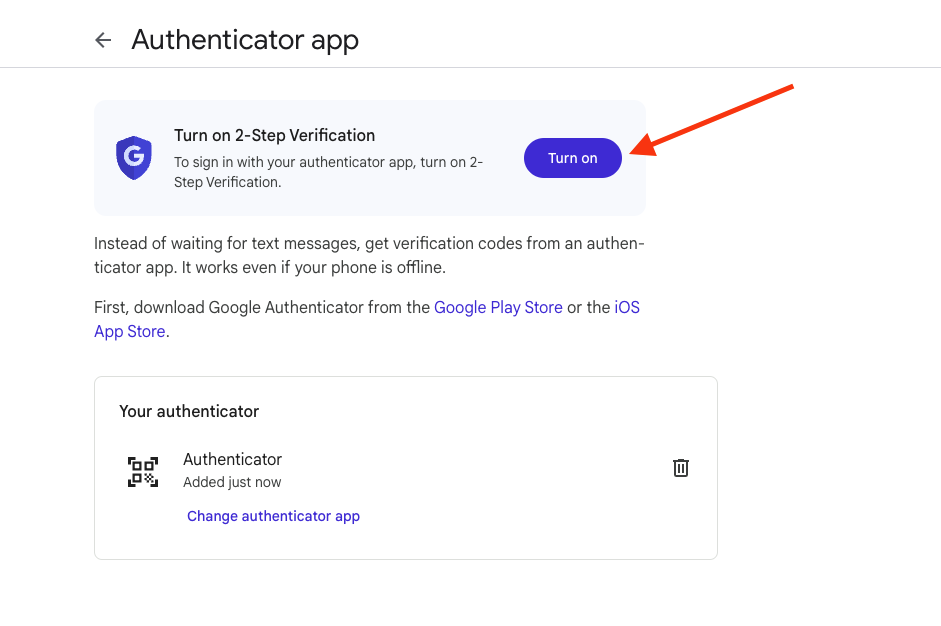
After clicking "Turn on", that's it. You'll see a window indicating you've now enabled 2-step verification (MFA) with your Authenticator app. Just click the blue "Done" button.
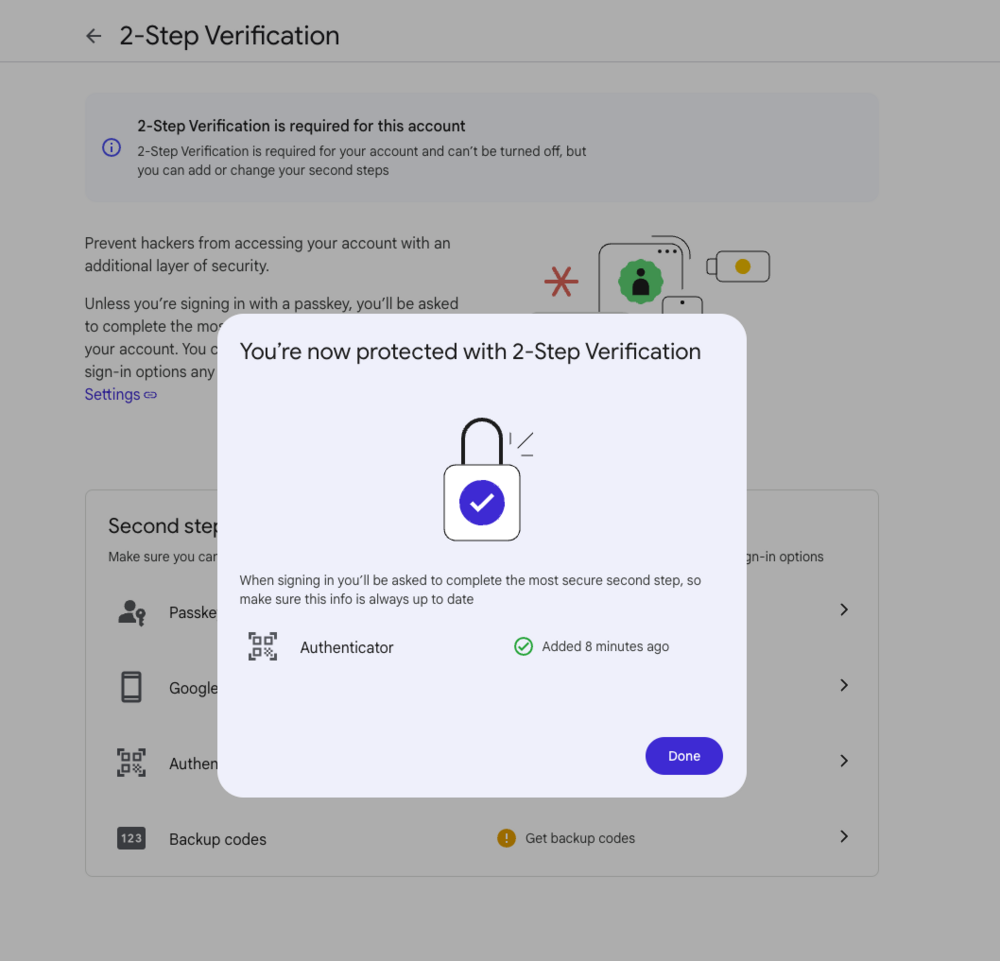
Now you'll be prompted to add the rotating 6-digit code from Google Authenticator when you log into your Google Workspace account.
IMPORTANT! Don't delete the entry from Google Authenticator and don't delete the Google Authenticator app from your phone.
ALSO IMPORTANT! If you get a new phone and your Google Authenticator app didn't get installed on your new phone - or - it came over, but the entry for your Google account did not. That's OK. Please create a support request with your Google administrator so they can reset your MFA. That way the next time you sign into you Google account, it will prompt you to set it up fresh.