
Mac Tip: Share Your Microsoft Calendar With Coworkers In Outlook For Mac
You can allow your colleagues to have various permissions and capabilities to your calendar. You can even add or change those permissions in Outlook on your Mac.
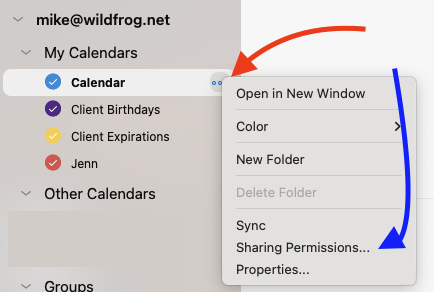
To do so, find your calendar and click the three dots next to it (red arrow below). Then, when the window pops out, click "Sharing Permissions..." (blue arrow).
When you click Sharing Permissions... a new box will pop up. Click the Permissions tab to show who has access to your calendar.
To change the level of access for someone you've already shared your calendar with, click the area shown by the red arrow and adjust their level of access. To remove their access to your calendar altogether, highlight their name and click the - denoted by the blue arrow.
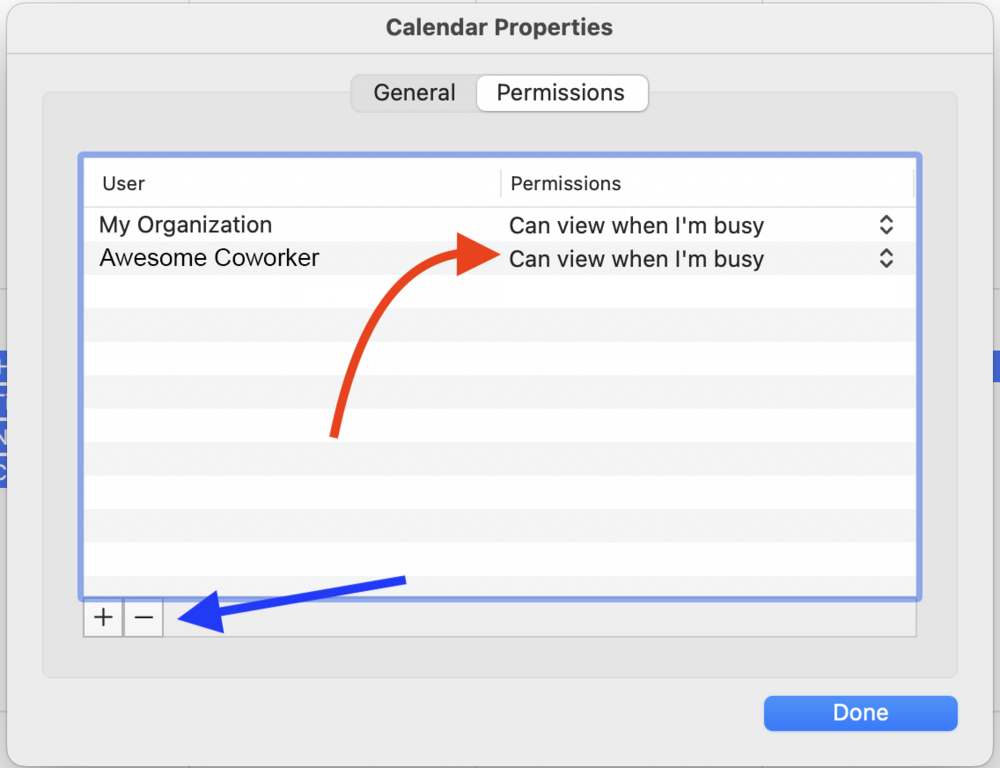
If you need to add someone new, click the + shown in the box above. Then start typing the name of the person you'd like to share your calendar with.
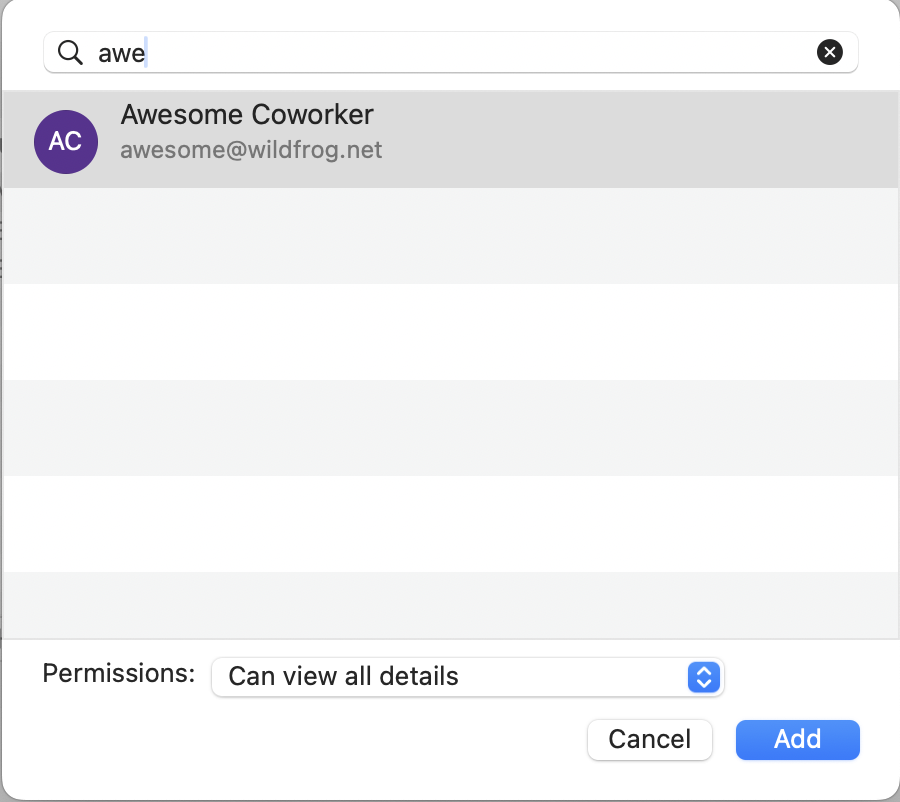
When their name appears, click on it, then adjust the level of access they should have to your calendar, then click Add. Then click Done. That person will then get an email inviting them to your calendar. Just repeat the process for each additional person who needs access to your calendar.